How to Set Up Automation: Bybit + TradingView + GeekTrade
This guide walks through the full process: creating a GeekTrade account, connecting Bybit (with a demo account for safe testing), creating a signal bot, and connecting TradingView so alerts execute trades automatically. All steps and screenshots were done on geektrade.online.
In brief:
Create a GeekTrade account, get Bybit API keys (system-generated, Read-Write, Unified Trading + Assets), add the exchange in GeekTrade, create a signal bot and copy its webhook URL and message, then in TradingView create an alert with that webhook and message. Alerts then execute ENTER-LONG, ENTER-SHORT, or EXIT on Bybit.
What You'll Need
| Item | Where |
|---|---|
| GeekTrade account | Sign up at geektrade.online (email or Google). |
| Bybit account | Bybit. For demo: switch Bybit to demo mode, then create API keys (same as live). |
| Bybit API keys | Bybit → API Management → system-generated key, Read-Write, Unified Trading + Assets (no withdrawal). |
| TradingView | TradingView account (paid plan required for webhook alerts). |
Part 1: GeekTrade — Account and Dashboard
Step 1: Create your account
- Open https://geektrade.online.
- Click Get Started or Create Account.
- Enter email, password (6+ characters), and Confirm password.
- Click Create Account (or use Sign up with Google).
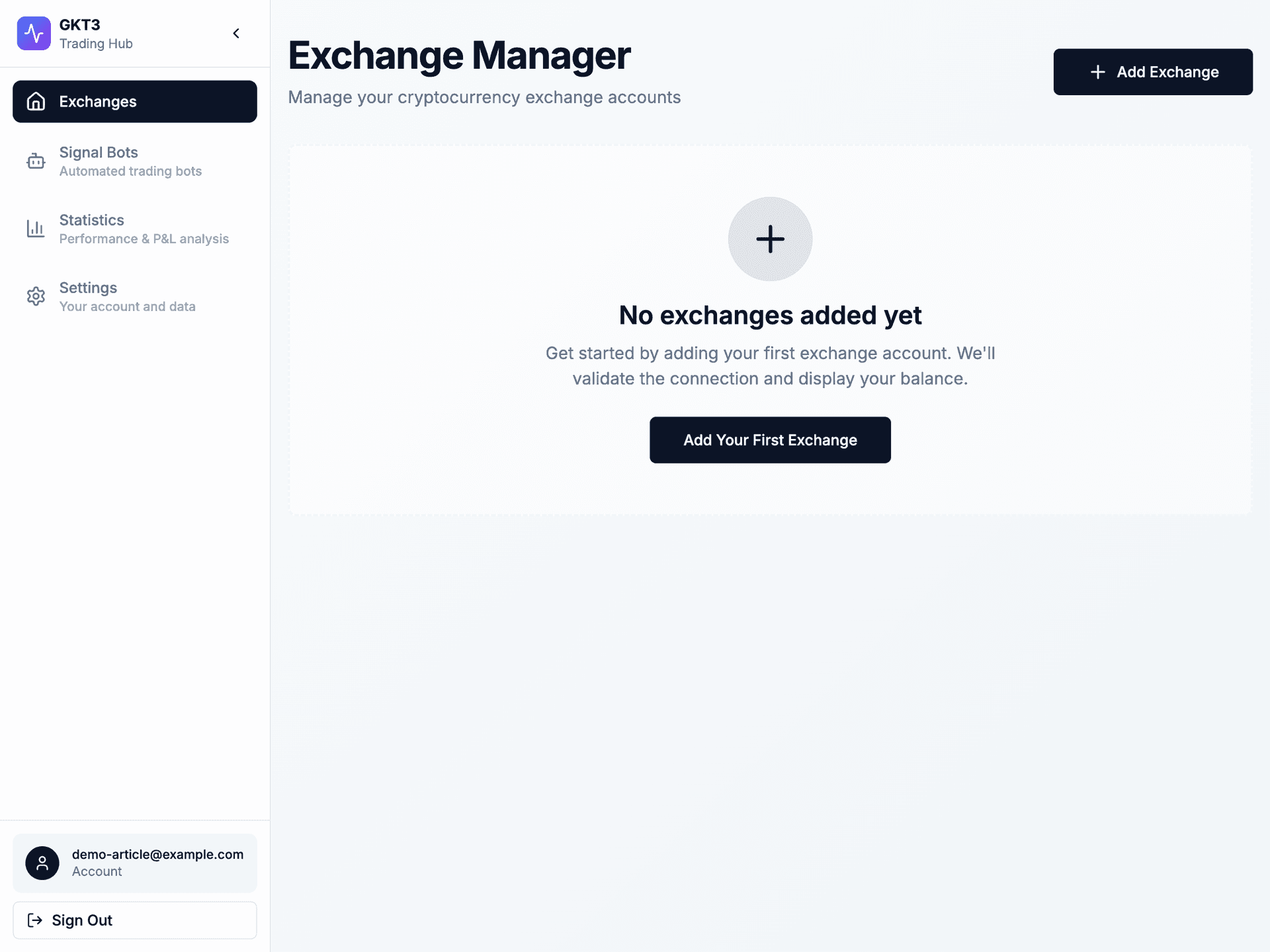
You'll be taken to the Exchange Manager dashboard.
Step 2: Dashboard (Exchange Manager)
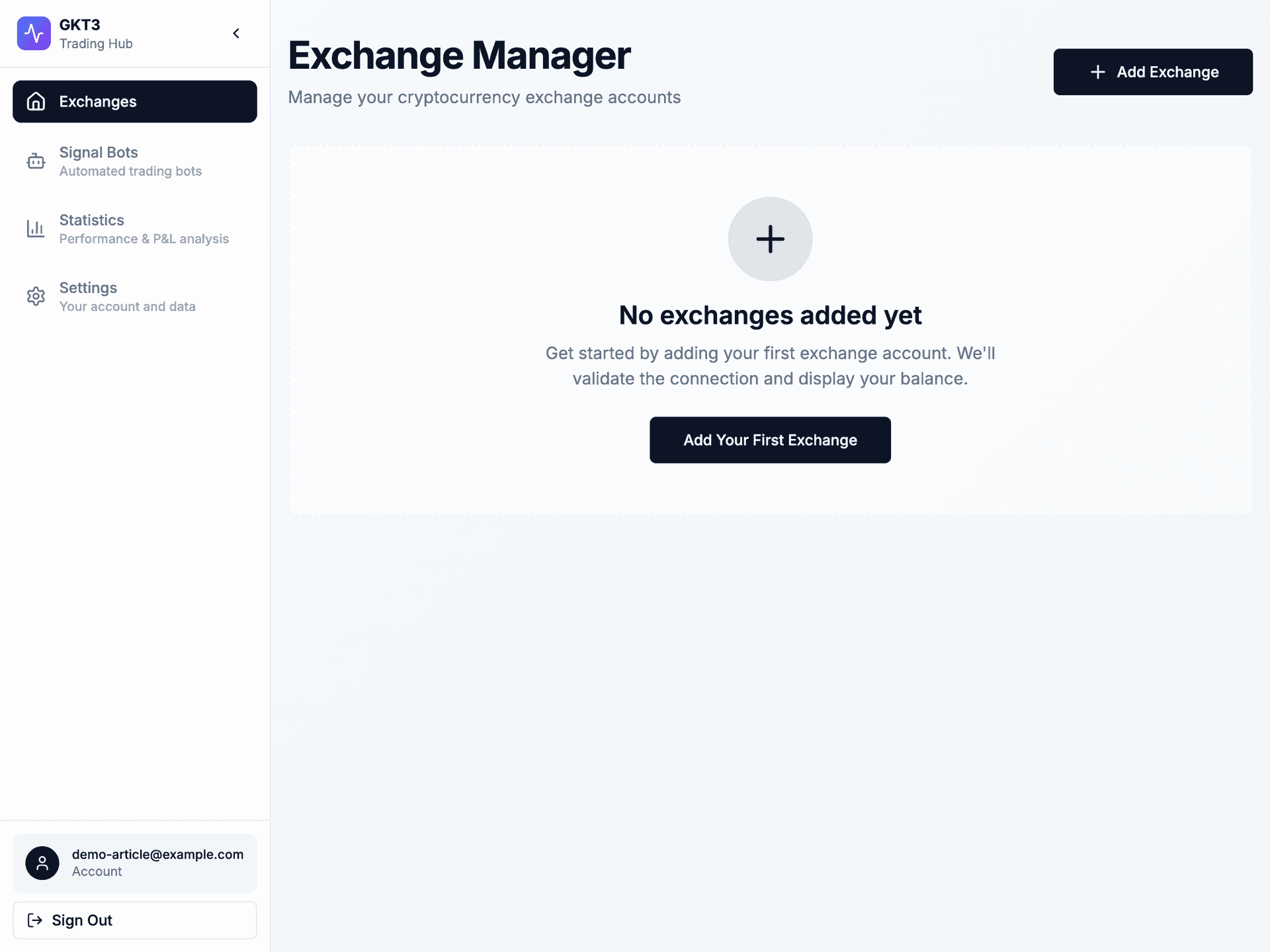
After login you'll see: Sidebar (Exchanges, Signal Bots, Statistics, Settings) and the main Exchange Manager area.
Part 2: Bybit — Get API Keys (demo or live)
The process is the same for demo and live; only the environment in Bybit changes. The key must be system-generated, with Read-Write and both Unified Trading and Assets checkboxes set.
For demo mode (no real funds):
- Log in at Bybit and switch to demo mode (demo/live toggle in the header or account area).
- Go to API Management (profile → API Management).
- Click Create New Key. In the "Select Your API Key Type" modal, choose System-generated API Keys (not self-generated). GeekTrade needs HMAC system-generated keys.
- On the Create New Key page: Name the key (e.g. "GeekTrade demo"), set API Key Permissions to Read-Write (not Read-Only), and under permissions enable Unified Trading and Assets. Do not enable withdrawal.
- Complete 2FA if asked, click Submit, then copy and store the API Key and API Secret once (secret is shown only once).
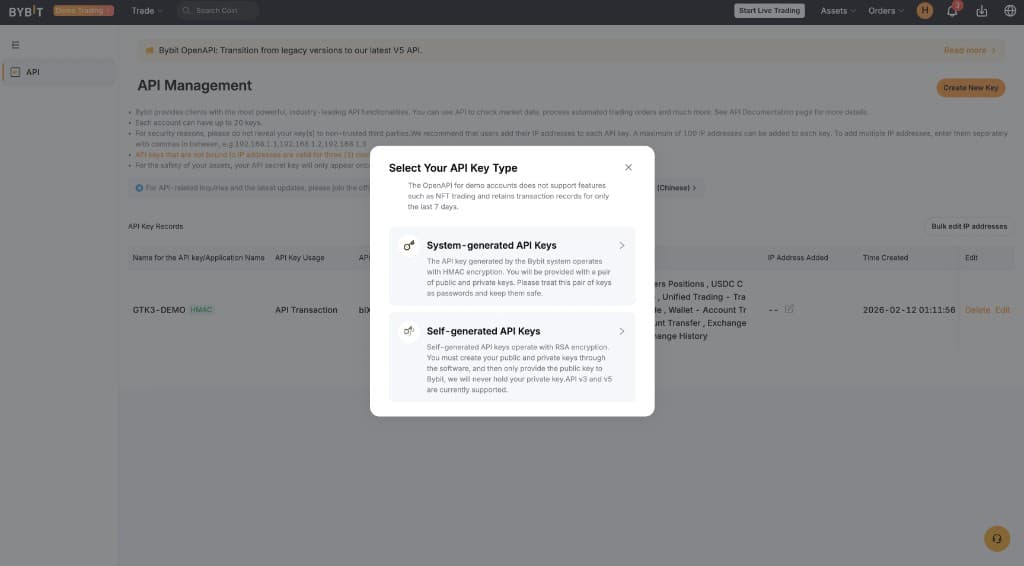
Select "System-generated API Keys" (first option).
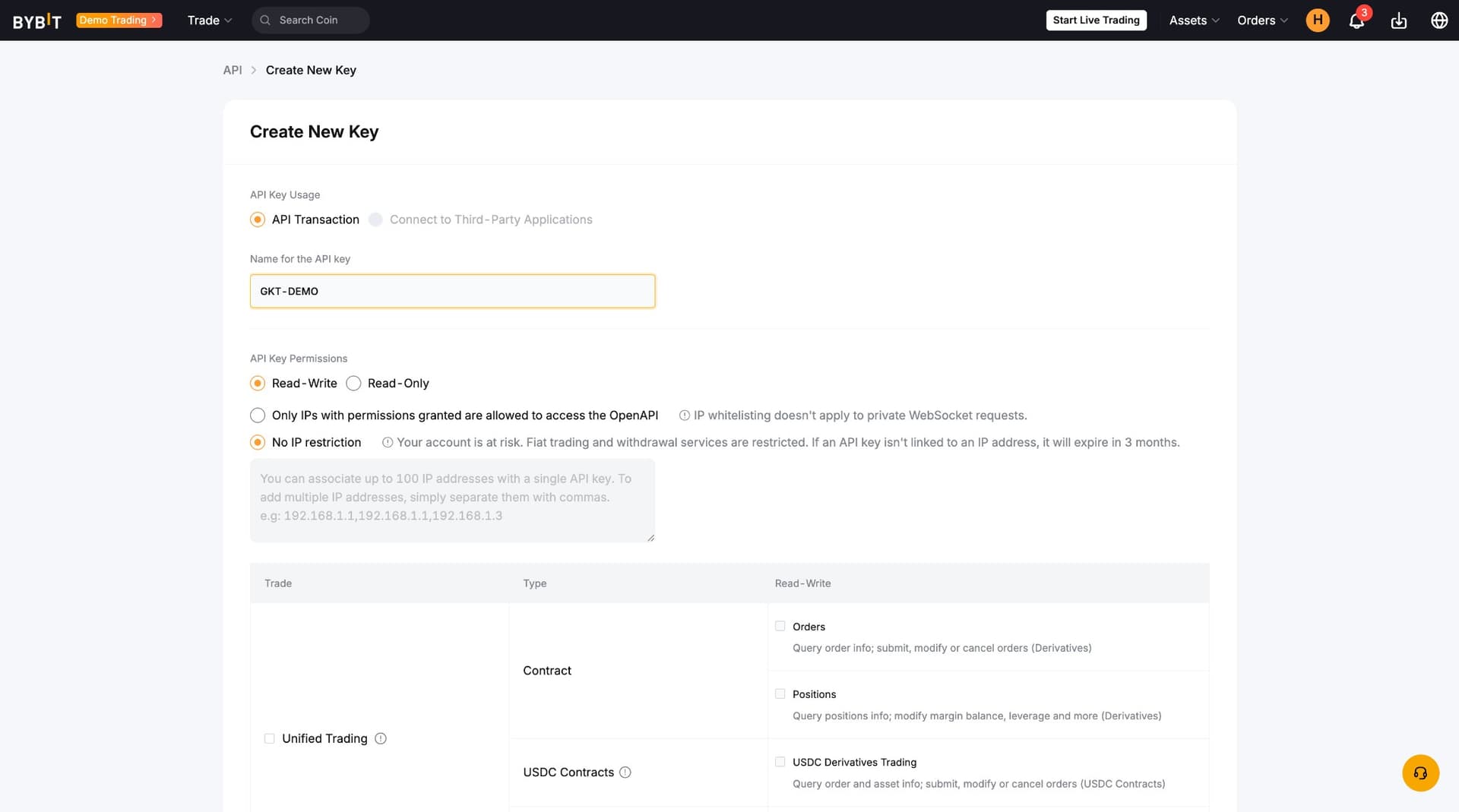
Set Read-Write and configure permissions.
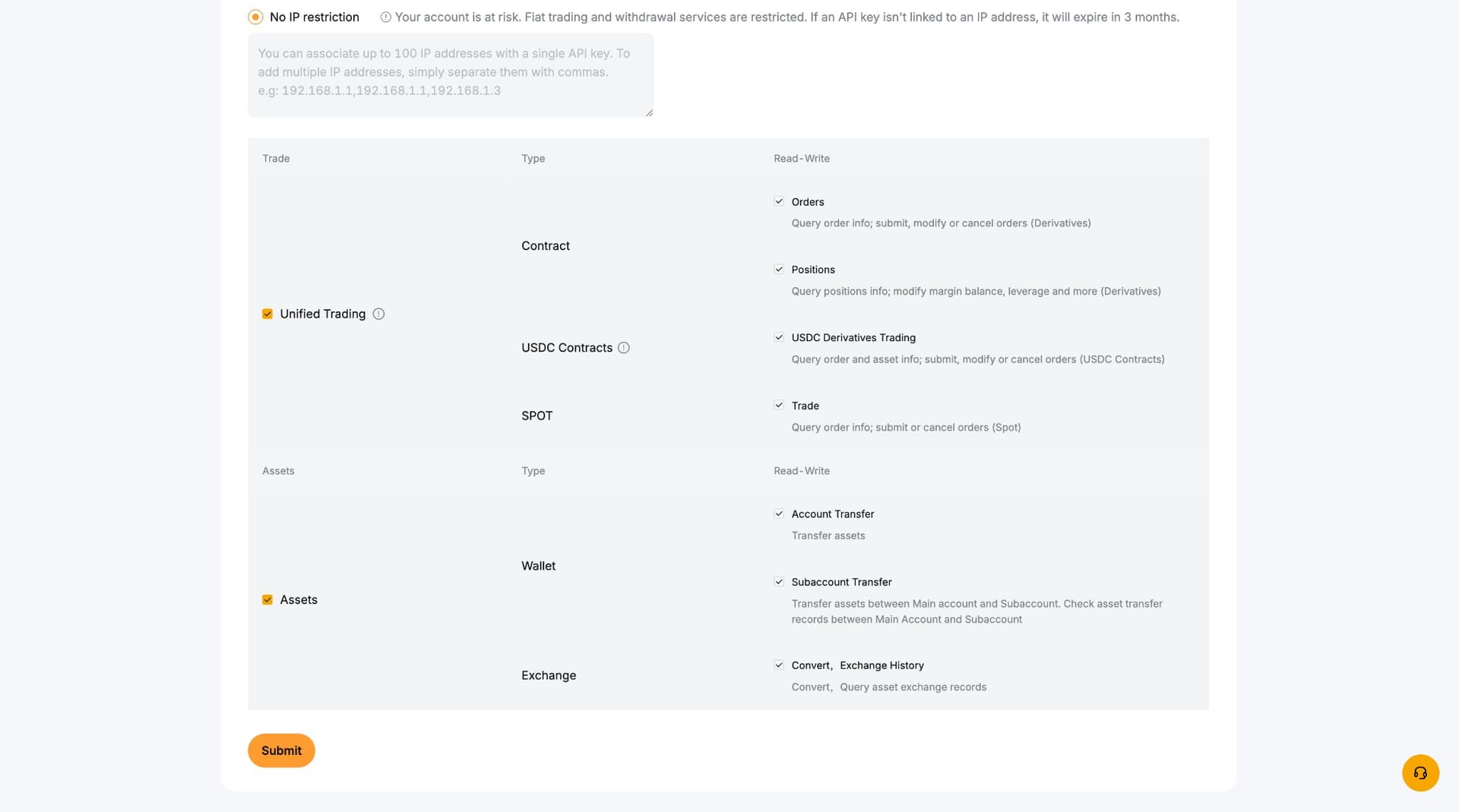
Ensure Unified Trading and Assets are checked (Read-Write), then Submit.
For live: Stay in live mode in Bybit and create your key the same way: system-generated, Read-Write, Unified Trading and Assets, no withdrawal.
In GeekTrade, when you add the exchange, turn Demo Trading on if you used Bybit demo mode.
Part 3: GeekTrade — Add Bybit and Create a Bot
Step 3: Add your exchange (Bybit)
- On Exchange Manager, click Add Exchange or Add Your First Exchange.
- Account Name (e.g. "Demo Bybit"), Exchange: Bybit, paste API Key and API Secret, turn Demo Trading on for demo mode.
- Click Add Exchange.
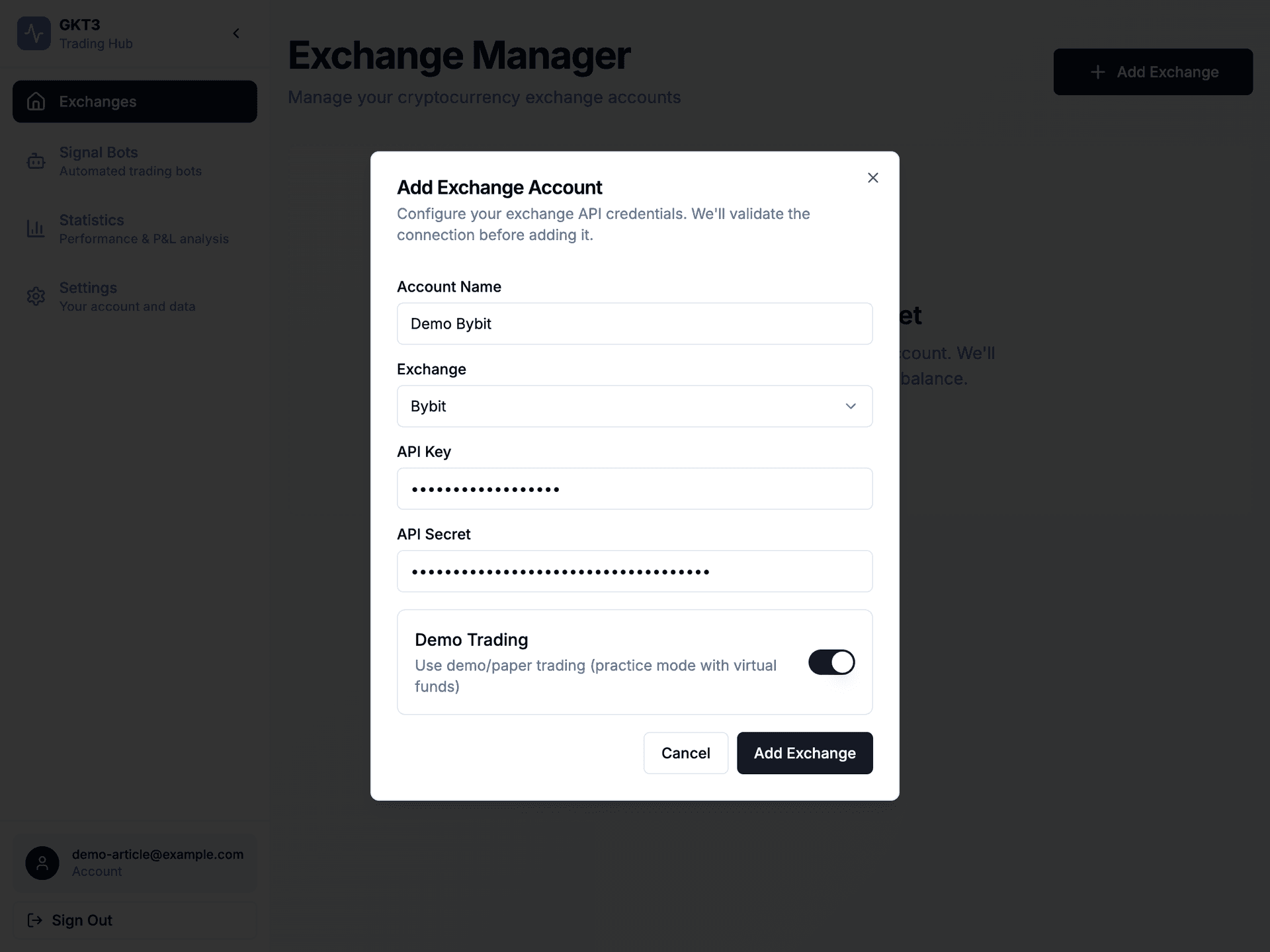
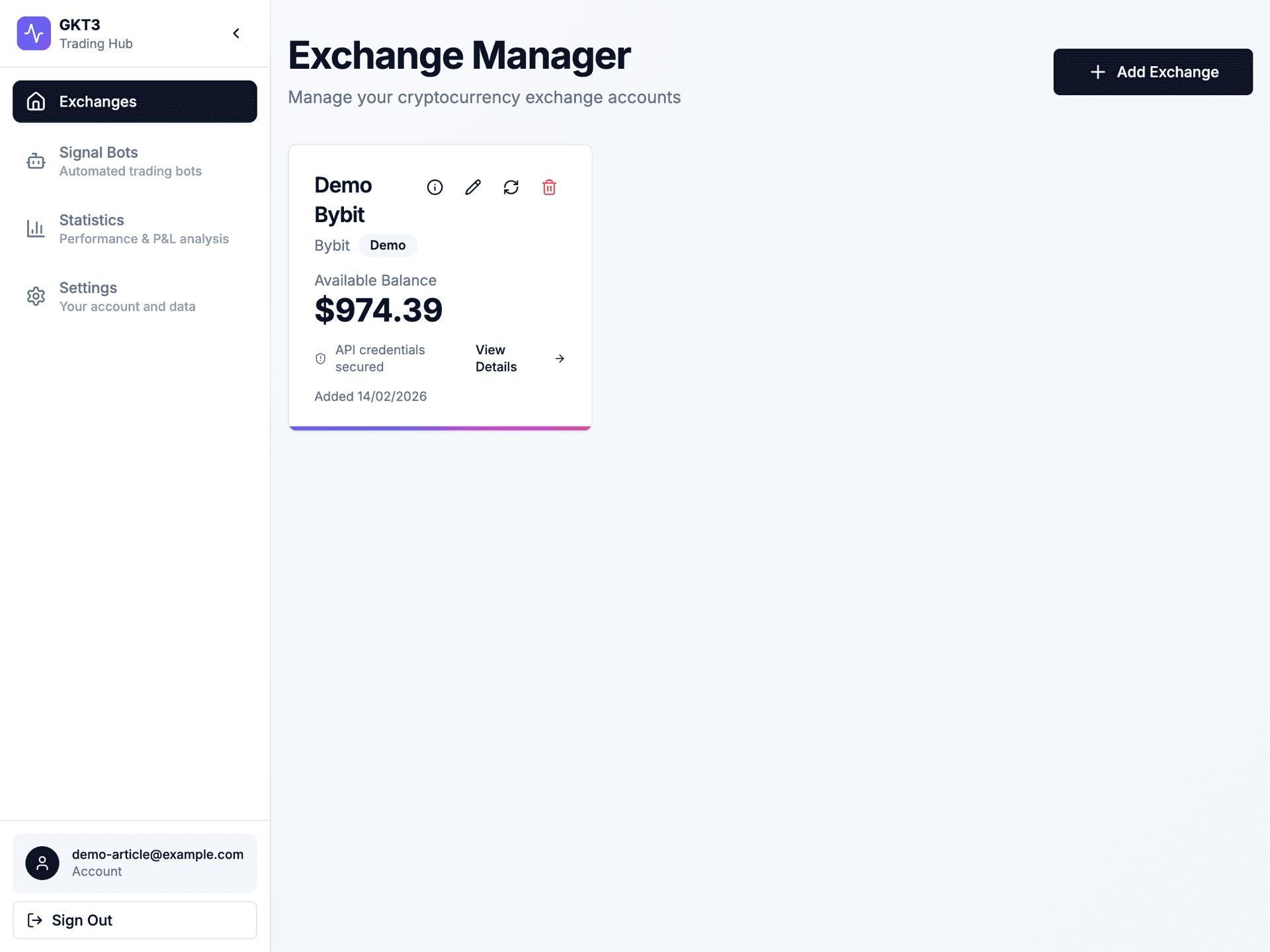
Step 4: Exchange added
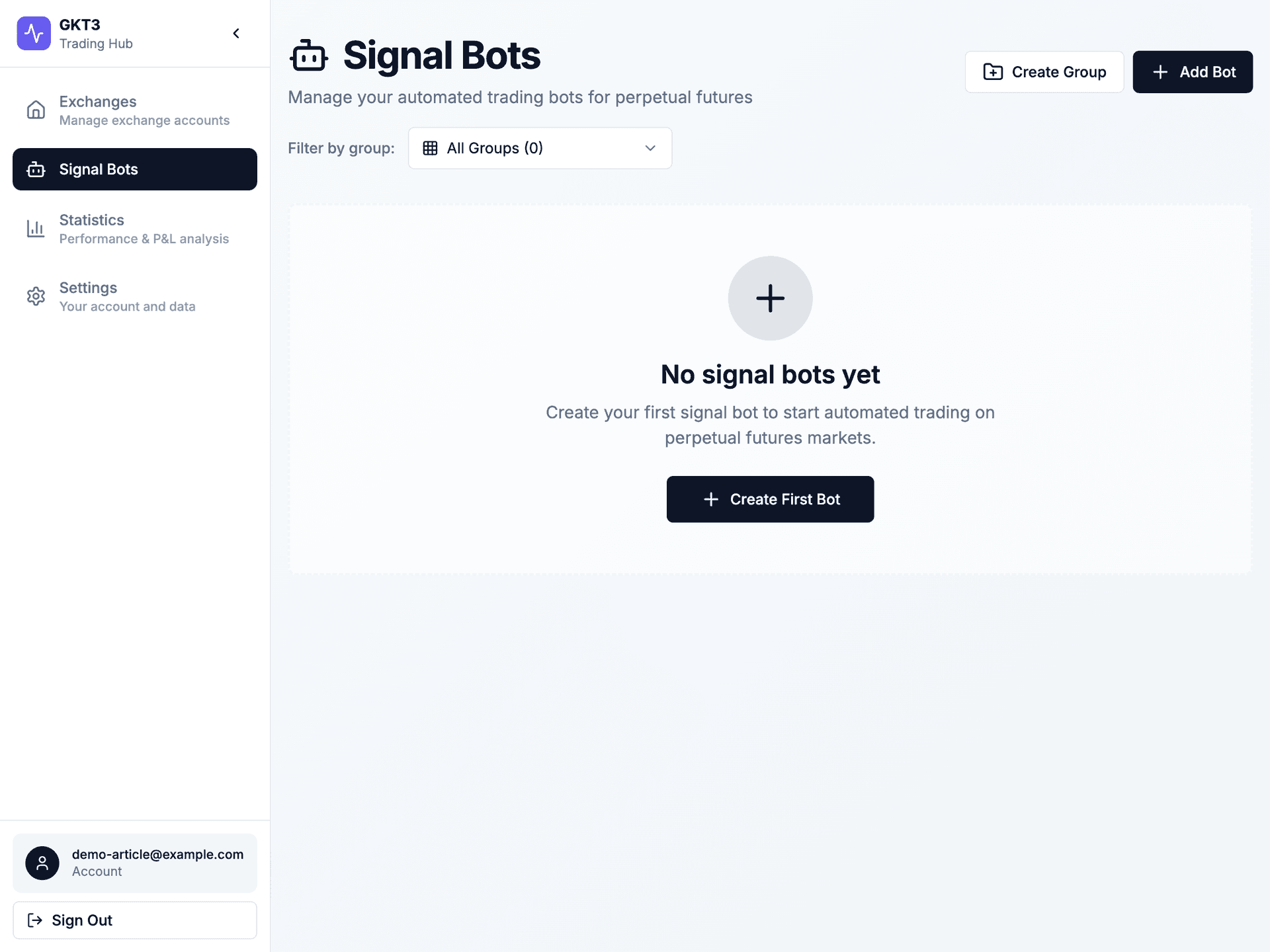
Step 5: Open Signal Bots → Step 6: Create a signal bot
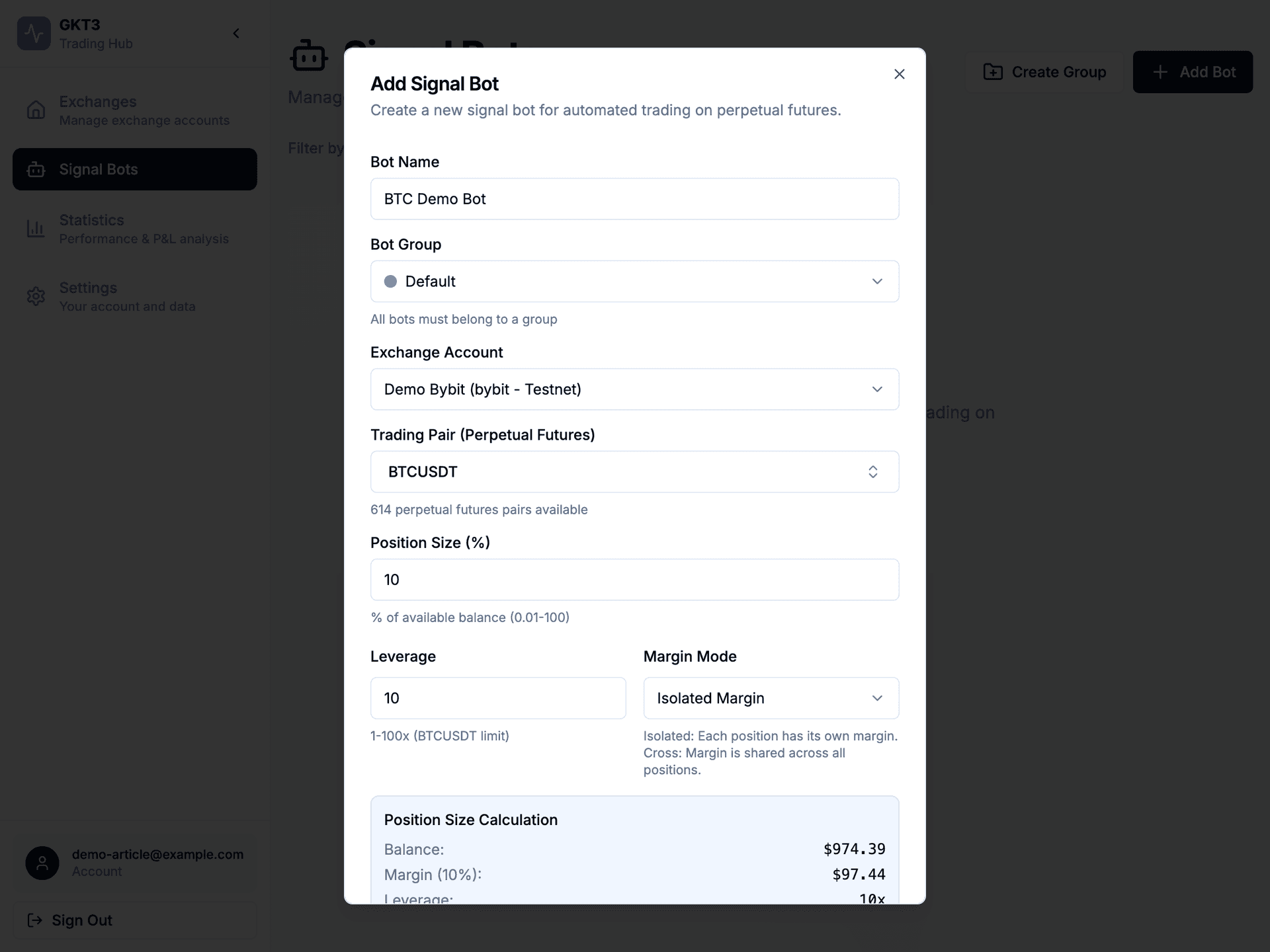
In the sidebar click Signal Bots. Click Add Bot. Fill: Bot Name, Bot Group, Exchange Account, Trading Pair (e.g. BTCUSDT), Position Size %, Leverage, Margin Mode. Click Create Bot.
Step 7: Bot created — get webhook data for TradingView
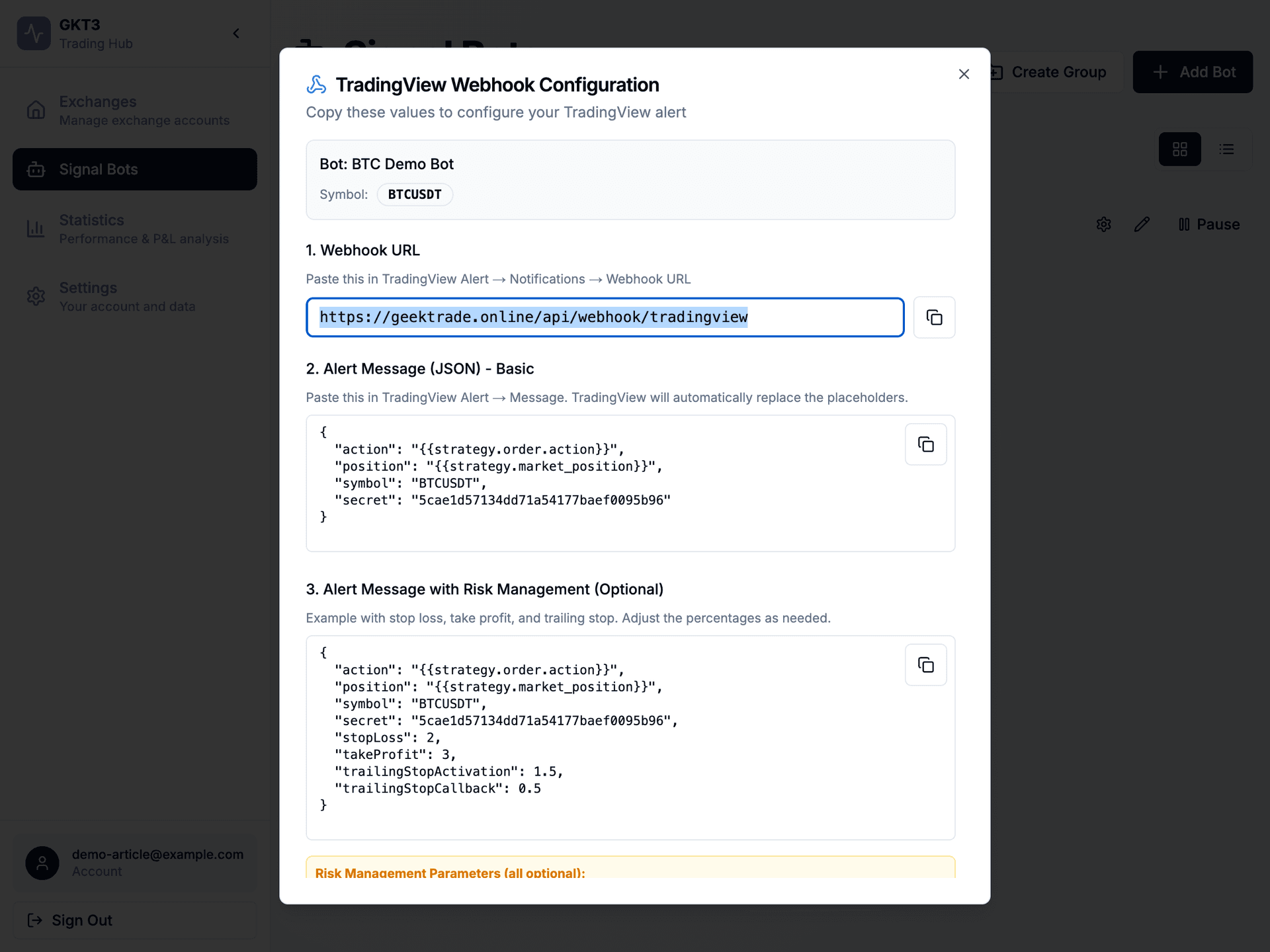
On the bot card, click the info icon (ⓘ) — the first icon in the row of buttons. Its tooltip says "Webhook configuration". That opens the dialog with the webhook URL and JSON message. Copy the Webhook URL and the Alert Message (JSON) including the bot secret.
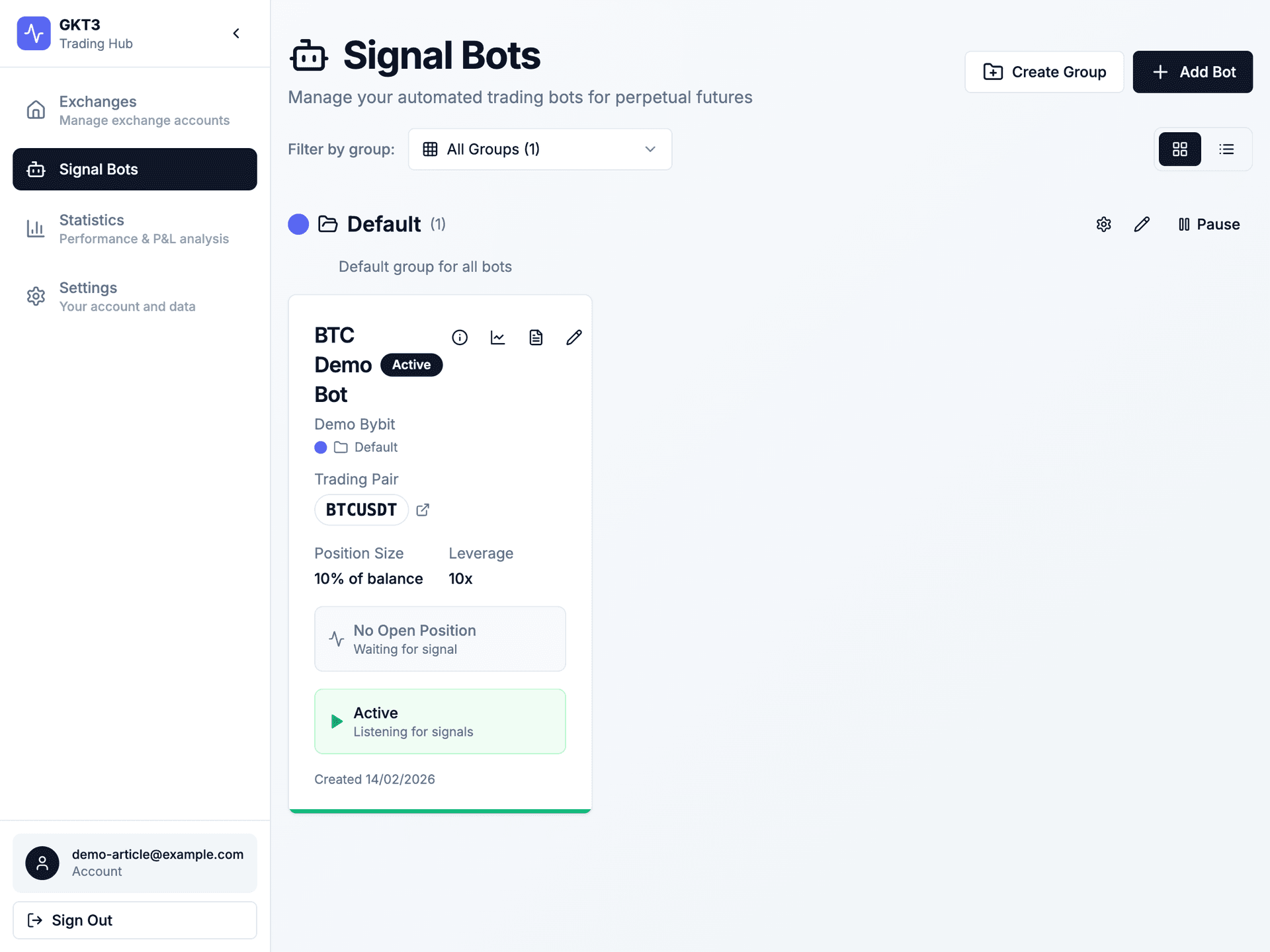
↑ Click the info icon (ⓘ) on the bot card to open the webhook dialog.
Part 4: TradingView — Connect the alert
- Open TradingView, open your chart, add your strategy. Click Alert (or right‑click chart → Create Alert). Set Condition (e.g. strategy order).
- In the Message tab: paste the message you copied from the GeekTrade bot's webhook modal. It's ready to use — just copy and paste.
- In the Notifications tab: enable Webhook URL and paste the URL you copied from GeekTrade.
- Set expiration and alert name, then click Create. When the alert fires, GeekTrade executes ENTER-LONG, ENTER-SHORT, or EXIT on Bybit.
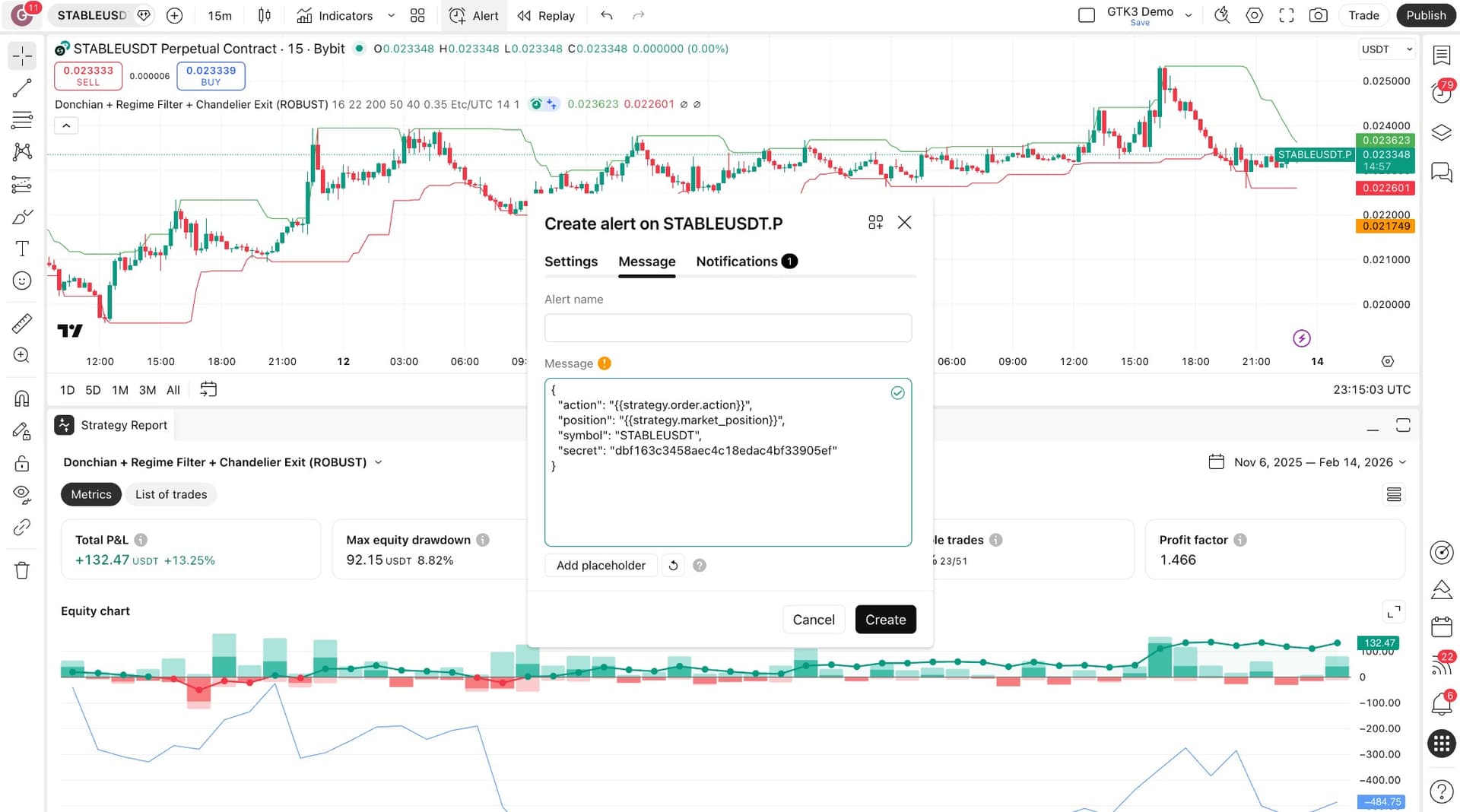
Just paste the message from the GeekTrade webhook modal — no editing needed.
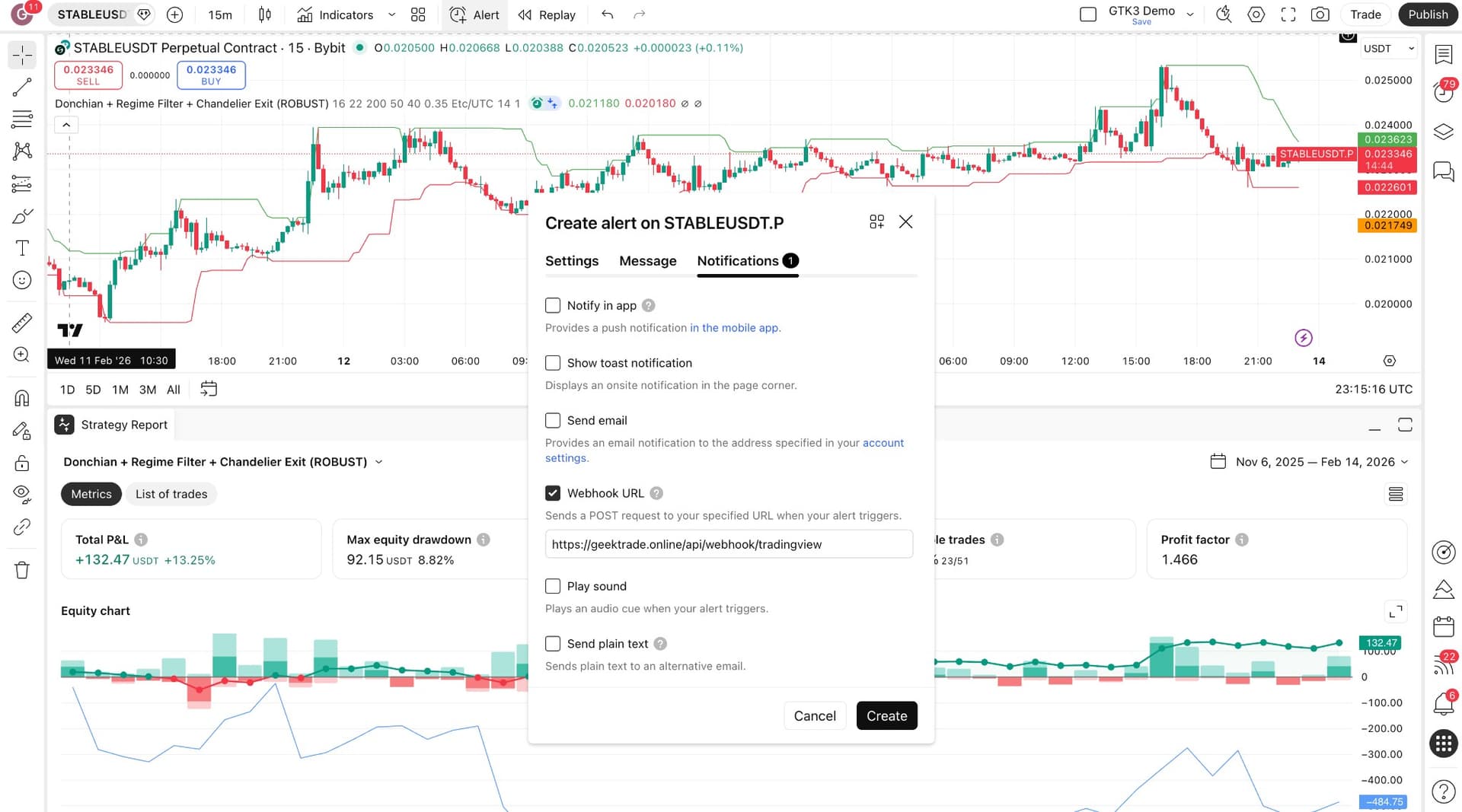
Paste the Webhook URL from the GeekTrade modal.
The secret in the JSON is unique per bot. If you delete and recreate the bot, update the message in TradingView.
Quick recap: Bybit → GeekTrade → TradingView
- GeekTrade — Sign up (email or Google).
- Bybit — For demo: switch to demo mode. API Management → Create New Key → system-generated, Read-Write, Unified Trading + Assets (no withdrawal). Copy key + secret. Same for live.
- GeekTrade — Add exchange: paste key/secret, turn Demo Trading on for demo mode.
- GeekTrade — Signal Bots → Add Bot → name, exchange, symbol (e.g. BTCUSDT), size, leverage.
- GeekTrade — Click the info icon (ⓘ) "Webhook configuration" on the bot card → copy Webhook URL and JSON message.
- TradingView — Create alert → paste Webhook URL and message from the bot's info modal (copy & paste, no editing).
- GeekTrade — Bot stays Active; use Play/Pause, Statistics, Position history.
Your API keys are stored securely in our database; GeekTrade never holds your funds. Use Demo Trading (demo mode) in GeekTrade to test the full flow without real money.